E-MAIL


Email is the electronic equivalent of sending composing and receiving a letter through the mail. There are many different mail reading programs or applications that control email but the basic functions are all the same. An email address directs a message to the recipient.
Email addresses are made up of...

  • the account name (often the users first initial and then the last name then the @ symbol )
  • then the name of the user's ISP
  • the last 2 or 3 characters describe the type of service called the top level/Country level  domain name. For example .com stand for commercial site, edu-educational site, .mil-military, .gov-government, .au-Australia, .net - network, etc.      

    As well as sending and receiving mail the recipient can;
    • save the address for future reference in an address book
    • reply to the original message
    • forward the message to a third party  and  edit a message
    • check the spelling and a wide range of other options.
    One of the services provided by your ISP is to provide a storage area or mailbox to collect email in. Email software programs control the transfer of this stored email by downloading the messages from your mailbox on your ISP's computer to your own computer. You must be connected to the Internet to do this.

    An email message is made up of two parts; the header information and the body. The recipient's address (to), the subject, the sender's email address as well as other information is contained in the header. The content of the message is in the body. You can find out information about an email message by viewing the header content. Most email programs had a 'view header' option in the menu.

    Some companies offer free email service that you can sign up for. These free services rely on advertising for revenue so your recipient will also be receive an advertisement with the email. Usually email is accessed through a web browser where the user composes and reads their mail online. The benefit is that you can easily access your mail from any internet terminal and the address is easily disposable. The disadvantage is that it doesn't have the legitimacy of a business address and it may be difficult to complete transactions.

    You can also attach files to email messages to send picture, sound, documents, videos and other types of file with your email.

     

Remote Desktop Connection Navigation

1. CTRL+ALT+END (Open the Microsoft Windows NT Security dialog box)
2. ALT+PAGE UP (Switch between programs from left to right)
3. ALT+PAGE DOWN (Switch between programs from right to left)
4. ALT+INSERT (Cycle through the programs in most recently used order)
5. ALT+HOME (Display the Start menu)
6. CTRL+ALT+BREAK (Switch the client computer between a window and a full screen)
7. ALT+DELETE (Display the Windows menu)
8. CTRL+ALT+Minus sign (-) (Place a snapshot of the active window in the client on the Terminal server clipboard and provide the same functionality as pressing PRINT SCREEN on a local computer.)
9. CTRL+ALT+Plus sign (+) (Place asnapshot of the entire client window area on the Terminal server clipboardand provide the same functionality aspressing ALT+PRINT SCREEN on a local computer.)

Remote Desktop Connection Navigation

1. CTRL+ALT+END (Open the Microsoft Windows NT Security dialog box)
2. ALT+PAGE UP (Switch between programs from left to right)
3. ALT+PAGE DOWN (Switch between programs from right to left)
4. ALT+INSERT (Cycle through the programs in most recently used order)
5. ALT+HOME (Display the Start menu)
6. CTRL+ALT+BREAK (Switch the client computer between a window and a full screen)
7. ALT+DELETE (Display the Windows menu)
8. CTRL+ALT+Minus sign (-) (Place a snapshot of the active window in the client on the Terminal server clipboard and provide the same functionality as pressing PRINT SCREEN on a local computer.)
9. CTRL+ALT+Plus sign (+) (Place asnapshot of the entire client window area on the Terminal server clipboardand provide the same functionality aspressing ALT+PRINT SCREEN on a local computer.)

MMC Console keyboard shortcuts

1. SHIFT+F10 (Display the Action shortcut menu for the selected item)
2. F1 key (Open the Help topic, if any, for the selected item)
3. F5 key (Update the content of all console windows)
4. CTRL+F10 (Maximize the active console window)
5. CTRL+F5 (Restore the active console window)
6. ALT+ENTER (Display the Properties dialog box, if any, for theselected item)
7. F2 key (Rename the selected item)
8. CTRL+F4 (Close the active console window. When a console has only one console window, this shortcut closes the console)

Microsoft Natural Keyboard Shortcuts

1. Windows Logo (Display or hide the Start menu)
2. Windows Logo+BREAK (Display the System Properties dialog box)
3. Windows Logo+D (Display the desktop)
4. Windows Logo+M (Minimize all of the windows)
5. Windows Logo+SHIFT+M (Restorethe minimized windows)
6. Windows Logo+E (Open My Computer)
7. Windows Logo+F (Search for a file or a folder)
8. CTRL+Windows Logo+F (Search for computers)
9. Windows Logo+F1 (Display Windows Help)
10. Windows Logo+ L (Lock the keyboard)
11. Windows Logo+R (Open the Run dialog box)
12. Windows Logo+U (Open Utility Manager)
13. Accessibility Keyboard Shortcuts
14. Right SHIFT for eight seconds (Switch FilterKeys either on or off)
15. Left ALT+left SHIFT+PRINT SCREEN (Switch High Contrast either on or off)
16. Left ALT+left SHIFT+NUM LOCK (Switch the MouseKeys either on or off)
17. SHIFT five times (Switch the StickyKeys either on or off)
18. NUM LOCK for five seconds (Switch the ToggleKeys either on or off)
19. Windows Logo +U (Open Utility Manager)
20. Windows Explorer Keyboard Shortcuts
21. END (Display the bottom of the active window)
22. HOME (Display the top of the active window)
23. NUM LOCK+Asterisk sign (*) (Display all of the subfolders that are under the selected folder)
24. NUM LOCK+Plus sign (+) (Display the contents of the selected folder)

Dialog Box - Keyboard Shortcuts

1. CTRL+TAB (Move forward through the tabs)
2. CTRL+SHIFT+TAB (Move backward through the tabs)
3. TAB (Move forward through the options)
4. SHIFT+TAB (Move backward through the options)
5. ALT+Underlined letter (Perform the corresponding command or select the corresponding option)
6. ENTER (Perform the command for the active option or button)
7. SPACEBAR (Select or clear the check box if the active option is a check box)
8. Arrow keys (Select a button if the active option is a group of option buttons)
9. F1 key (Display Help)
10. F4 key (Display the items in the active list)
11. BACKSPACE (Open a folder one level up if a folder is selected in the Save As or Open dialog box)


Keyboard Shortcuts -Microsoft Windows Part 2

Keyboard Shortcuts -Microsoft Windows

01. CTRL+A (Select all)
02. F3 key (Search for a file or a folder)
03. ALT+ENTER (View the properties for the selected item)
04. ALT+F4 (Close the active item, or quit the active program)
05. ALT+ENTER (Display the properties of the selected object)
06. ALT+SPACEBAR (Open the shortcut menu for the active window)
07. CTRL+F4 (Close the active document in programs that enable you to have multiple documents open simultaneously)
08. ALT+TAB (Switch between the open items)
09. ALT+ESC (Cycle through items in the order that they had been opened)
10. F6 key (Cycle through the screen elements in a window or on the desktop)
11. F4 key (Display the Address bar list in My Computer or Windows Explorer)
12. SHIFT+F10 (Display the shortcut menu for the selected item)
13. ALT+SPACEBAR (Display the System menu for the active window)
14. CTRL+ESC (Display the Start menu)15. ALT+Underlined letter in a menu name (Display the corresponding menu) Underlined letter in a command name on an open menu (Perform the corresponding command)
16. F10 key (Activate the menu bar in the active program)
17. RIGHT ARROW (Open the next menu to the right, or open a sub menu)
18. LEFT ARROW (Open the next menu to the left, or close a sub menu)
19. F5 key (Update the active window)
20. BACKSPACE (View the folder onelevel up in My Computer or Windows Explorer)
21. ESC (Cancel the current task)
22. SHIFT when you insert a CD-ROMinto the CD-ROM drive (Prevent the CD-ROM from automatically playing)


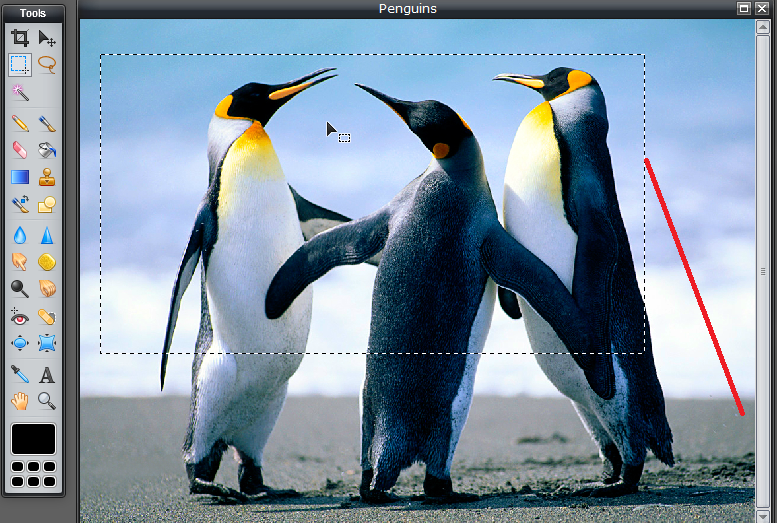
Photoshop Tolls - Marquee tool (M)

Photoshop - Marquee tool (M)

HTML Form – Select Button


Example
 <form>
<input type="radio" name="civil status" value="marred">marred<br>
<input type="radio" name="civil status" value="unmarred"> unmarred
</form>

Preview
Marred
Unmarred

HTML Caption Tag

Examples

<table border="1">
  <caption>Exam Marks </caption>
  <tr>
    <th>Subject</th>
    <th>Marks</th>
  </tr>
  <tr>
    <td>Maths</td>
    <td>74</td>
  </tr>
</table>

Result 

Exam Marks
Subject Marks
Maths 74