Creating a Presentation

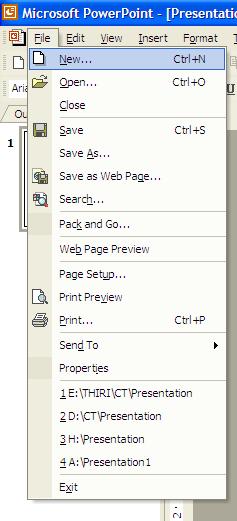
When PowerPoint stars, it presents you with a variety of options for creating or opening presentations. Click File - New
or
Click File - New - Blank Presentation - Apply Slide Layouts


Starting Microsoft PowerPoint

To start Microsoft PowerPoint, use one of the following commands 


i. Click Start -- All Programs -- Microsoft PowerPoint

ii. Double Click on PowerPoint Icon in the Desktop
            

Microsoft Power Point XP

Microsoft Power Point XP
         Microsoft PowerPoint is the presentation Software which comes with MS Office. This presentation graphics program helps you create simple, professional and attractive presentations.

Adding A Custom List

The Custom Lists option allows you to add a New List to your Custom Lists Box The advantage of this is that you needn’t to retype a list which you are frequently using.


i. To add a New Custom list Select Tools - Options - Custom Lists

ii. Click New List in the Custom lists box to create a new list, and then type the entries in the List entries box. The first character cannot be a number. Press Enter Key to 
separate each entry or type the list separating by comas. .( Ex: Officer Training Wing , Navigation School, Gunnery School, Commutation School, Edp School, Supply School, Electrical School, Combat Training School, ASW School)

iii. Then, Click Add Button to add your New List to List Entries Box and finally click Ok
             

Conditional Formatting

You can use Conditional Formatting to apply formats to selected cells that meet specific criteria based on values or formulas you specify.

a. First select the Cells or Range Of Cells that you want to apply Conditional Format and then Select Format - Conditional Formatting

b. Then click the operator you want to use to set the condition on the selected cell range (Ex : Cell Value is Less than or Equal to 5000)

c. Select the format elements you want to apply with conditional formatting. You can apply only one conditional format to a cell at a time.

d. After giving all the conditions and formats Click Ok Note : You can give maximum three Conditional Formats to a Selected Cell Range


Data Validation

You can use Data validation to define what data is valid for individual cells or cell ranges; restricts the data entry to a particular type, such as whole numbers, decimal numbers, or text; and sets limits on the valid entries.

a. First select the Cells or Cell Range to validate and go to Data - Validation

b. Then type the Validation Criteria , Input Message and Error Alert (Style ,Title and Message) and finally click Ok
             

About Charts in Ms Excel


Charts are visually attractive and make it easy for users to see comparisons, patterns, and trends in data. For most 2-D charts, you can change the chart type of either a data series or the entire chart. For bubble charts, you can change only the type of the entire chart. For most 3-D charts, changing the chart type affects the entire chart. For 3-D bar and column charts, you can change a data series to the cone, cylinder, or pyramid chart type.

Creating a Chart Using Chart Wizard on Selected Data

City
Minimum
Maximum
Ratnapura
18
30
Colombo
20
26
Kandy
16
21
Badulla
19
29
Galle
17
27
Trincomalee
25
31


a. First select Cell Range that Contain data with Column Headings


b. Select Insert - Chart


c. Next you will be prompted to Chart Wizard Dialog Box , From Chart Wizard Dialog Box Select Standard Types Tab and then select Column Chart Type and 3-D Visual Effect and finally Click Next Button.


d. Click Next Button in next step also


e. In the next step type following in required Text boxes and Click Next Button Chart Title : Normal Temperature Of Six Cities In Sri Lanka on March 2003 Category (X) axis : Cities Value (Z) axis : Temperature In Celsius


f. Finally Click Finish Button


Functions in Excel

i. UPPER
The upper function is used to convert a text into uppercase. =Upper (“trincomalee”) will give you TRINCOMALEE
ii. LOWER
Converts all uppercase letters in a text string to lowercase. =Lower (“CHINTHAKA”) will give you chinthaka
iii. PROPER
Capitalizes the first letter in a text string and any other letters in text that follow any character other than a letter. Converts all other letters to lowercase letters. =Proper (“online it academy”) will give you Online It Academy
iv. TRIM
Removes the unnecessary spaces from a string =Trim (“Online It Academy”) → Online It Academy
v. REPT
Repeat a text a given number of times. =REPT (“@ # %”, 20)
vi. SQRT
Returns a positive square root. = sqrt (81) → 9
vii. ROUND
Rounds a number to a specified number of digits. =Round (2.5678,2) → 2.57
viii. POWER
Returns the result of a number raised to a power. = Power (7,3) → 343
ix. MOD
Returns the remainder after a number is divided by another number. = mod(17,6) → 5
x. INT
Returns the integer value after a number is divided by another number. =Int(10/3) → 3
xi. POWER
Returns the result of a number raised to a power. =Power(5,3) → 125
xii. SUM
Adds all the numbers in a range of cells. = Sum(12,5,7) → 24 = Sum (A1 : A5)
xiii. AVERAGE
Returns the average (arithmetic mean) of the arguments. = Avg (3,4,5) → 4 = Average (A1: A5)
xiv. MAX
Returns the largest value in a set of values. = Max (12,45,6,67,82,11) → 82 = Max (A1: A5)
xv. MIN
Returns the smallest value in a set of values. = Max (12,45,6,67,82,11) → 6 = Max (A1: A5

Using Functions in Ms Excel

          Functions are predefined formulas that perform calculations by using specific values, called arguments, in a particular order, or structure. Functions can be used to perform simple or complex calculations.
a. The structure of a function
The structure of a function begins with an equal sign (=), followed by the function name, an opening parenthesis, the arguments for the function separated by commas, and a closing parenthesis.
b. Function name.
For a list of available functions, click a cell and press SHIFT+F3
c. Arguments.
Arguments can be numbers, text, logical values such as TRUE or FALSE.
d. Argument tool tip.
A tool tip with the syntax and arguments appears when you type the function. For example, type =ROUND (and the tool tip appears. Tool tips appear only for built-in functions..
e. Create a Formula
          The formulas perform calculations on values in your worksheet. A formula starts with an equal sign (=). For example, the following formula multiplies 2 by 3 and then adds 5 to the result. =5+2*3