Microsoft Natural Keyboard Shortcuts

1. Windows Logo (Display or hide the Start menu)
2. Windows Logo+BREAK (Display the System Properties dialog box)
3. Windows Logo+D (Display the desktop)
4. Windows Logo+M (Minimize all of the windows)
5. Windows Logo+SHIFT+M (Restorethe minimized windows)
6. Windows Logo+E (Open My Computer)
7. Windows Logo+F (Search for a file or a folder)
8. CTRL+Windows Logo+F (Search for computers)
9. Windows Logo+F1 (Display Windows Help)
10. Windows Logo+ L (Lock the keyboard)
11. Windows Logo+R (Open the Run dialog box)
12. Windows Logo+U (Open Utility Manager)
13. Accessibility Keyboard Shortcuts
14. Right SHIFT for eight seconds (Switch FilterKeys either on or off)
15. Left ALT+left SHIFT+PRINT SCREEN (Switch High Contrast either on or off)
16. Left ALT+left SHIFT+NUM LOCK (Switch the MouseKeys either on or off)
17. SHIFT five times (Switch the StickyKeys either on or off)
18. NUM LOCK for five seconds (Switch the ToggleKeys either on or off)
19. Windows Logo +U (Open Utility Manager)
20. Windows Explorer Keyboard Shortcuts
21. END (Display the bottom of the active window)
22. HOME (Display the top of the active window)
23. NUM LOCK+Asterisk sign (*) (Display all of the subfolders that are under the selected folder)
24. NUM LOCK+Plus sign (+) (Display the contents of the selected folder)

Dialog Box - Keyboard Shortcuts

1. CTRL+TAB (Move forward through the tabs)
2. CTRL+SHIFT+TAB (Move backward through the tabs)
3. TAB (Move forward through the options)
4. SHIFT+TAB (Move backward through the options)
5. ALT+Underlined letter (Perform the corresponding command or select the corresponding option)
6. ENTER (Perform the command for the active option or button)
7. SPACEBAR (Select or clear the check box if the active option is a check box)
8. Arrow keys (Select a button if the active option is a group of option buttons)
9. F1 key (Display Help)
10. F4 key (Display the items in the active list)
11. BACKSPACE (Open a folder one level up if a folder is selected in the Save As or Open dialog box)


Keyboard Shortcuts -Microsoft Windows Part 2

Keyboard Shortcuts -Microsoft Windows

01. CTRL+A (Select all)
02. F3 key (Search for a file or a folder)
03. ALT+ENTER (View the properties for the selected item)
04. ALT+F4 (Close the active item, or quit the active program)
05. ALT+ENTER (Display the properties of the selected object)
06. ALT+SPACEBAR (Open the shortcut menu for the active window)
07. CTRL+F4 (Close the active document in programs that enable you to have multiple documents open simultaneously)
08. ALT+TAB (Switch between the open items)
09. ALT+ESC (Cycle through items in the order that they had been opened)
10. F6 key (Cycle through the screen elements in a window or on the desktop)
11. F4 key (Display the Address bar list in My Computer or Windows Explorer)
12. SHIFT+F10 (Display the shortcut menu for the selected item)
13. ALT+SPACEBAR (Display the System menu for the active window)
14. CTRL+ESC (Display the Start menu)15. ALT+Underlined letter in a menu name (Display the corresponding menu) Underlined letter in a command name on an open menu (Perform the corresponding command)
16. F10 key (Activate the menu bar in the active program)
17. RIGHT ARROW (Open the next menu to the right, or open a sub menu)
18. LEFT ARROW (Open the next menu to the left, or close a sub menu)
19. F5 key (Update the active window)
20. BACKSPACE (View the folder onelevel up in My Computer or Windows Explorer)
21. ESC (Cancel the current task)
22. SHIFT when you insert a CD-ROMinto the CD-ROM drive (Prevent the CD-ROM from automatically playing)


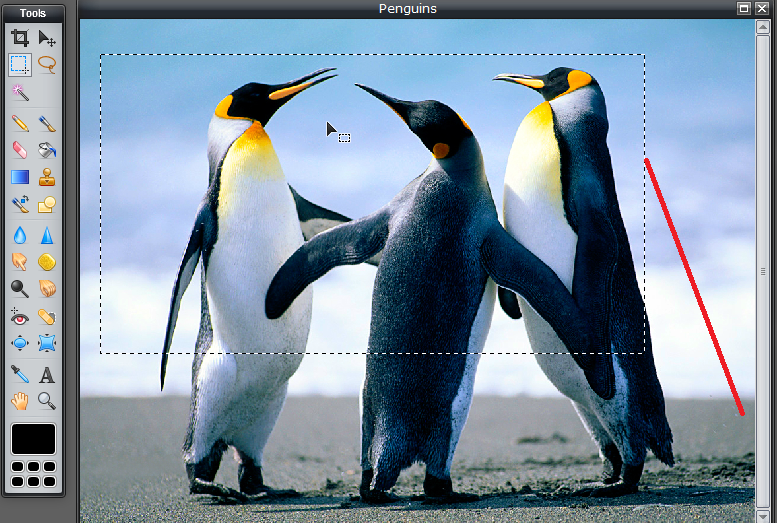
Photoshop Tolls - Marquee tool (M)

Photoshop - Marquee tool (M)

HTML Form – Select Button


Example
 <form>
<input type="radio" name="civil status" value="marred">marred<br>
<input type="radio" name="civil status" value="unmarred"> unmarred
</form>

Preview
Marred
Unmarred

HTML Caption Tag

Examples

<table border="1">
  <caption>Exam Marks </caption>
  <tr>
    <th>Subject</th>
    <th>Marks</th>
  </tr>
  <tr>
    <td>Maths</td>
    <td>74</td>
  </tr>
</table>

Result 

Exam Marks
Subject Marks
Maths 74

HTML Forms – Text

Example
<form>
Name: <input type="text" name="Name"><br>
Address: <input type="text" name="Address">
</form>

Preview
Name    :
Address:

Change Tha Desktop wallpaper

පරිගනකයේ Desktop ඒකට ලස්සන කැලැනඩරයක් දාමුද
Download

Google Magic

1 .     Go to google.com and search this word  Do a barrel roll  and Click Enter or Search Button
 2.     Go to google.com and search this word  Zerg rush   and Click Enter or Search Button

3.      Go to This Link and search any photos or Word

http://www.google.com.hk/intl/zh-CN/landing/shuixia/

4.      Go to This Link and seach any Photos or Word 
http://www.mrdoob.com/projects/chromeexperiments/google-gravity/

HTML Ordered Lists

Example
<ol>
<li>Mother</li>
<li>Father</li>
<li>Sun</li>
<li>Uncle </li>
</ol>
Preview
  1. Mother
  2. Father
  3. Sun
  4. Uncle